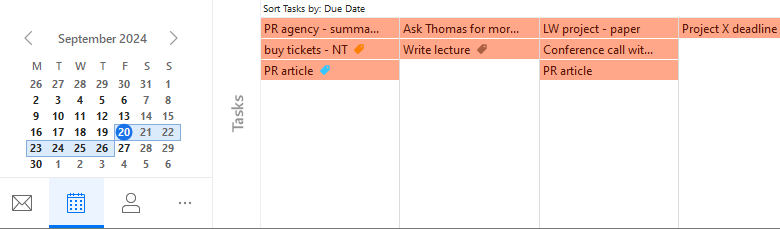
To create a new task, select New in the toolbar, the other way is to right-click a task folder in the Tasks sub-panel in the left vertical panel and select New task from the context menu. The last and by far the fastest way, when you are in the Task section, is to click on the top line (the line is separated by thick line, see screen shot bellow), fill in required fields and press enter.
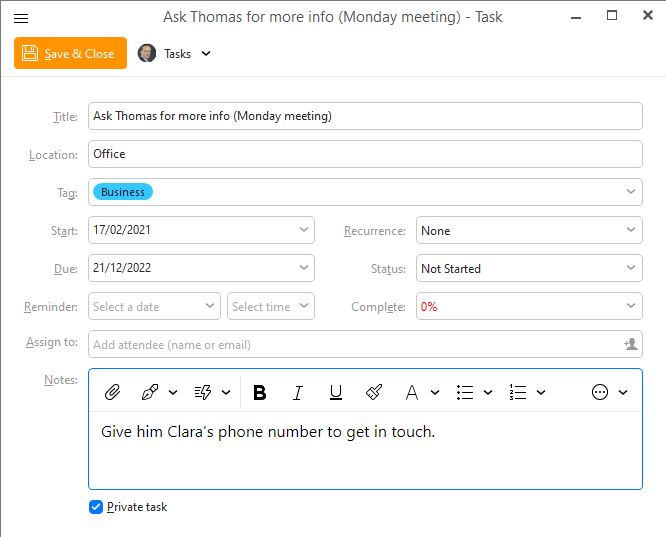
A Task create-and-edit dialog will open.
The title of the task. This information will be displayed in the task list and therefore it should be as brief as possible.
Location of the task.
Start time of the task. Consists of two fields, date and hour. The default value is the current date and hour.
Time required for completion of the task.
Reminder is a special function of the interface, which allows reminding of upcoming tasks. If the reminder is set for a task, an alert is displayed at the defined time that informs of an upcoming task. By default the Reminder: checkbox is unchecked, meaning that you won't be reminded of the task. But if you check it and set a date and time in the Reminder: fields, an alert will be displayed at the specified time. To cancel the reminder, simply uncheck the Reminder: checkbox.
In the tag drop-down menu, you can assign color coded tags to the task. Tags provide a way for you to recognize and assess the nature of a Task at a glance, whether a Task is work related, personal or requires immediate attention etc. (For more details on Tags see About Tags).
Each task goes through several stages during the process of its completion. Here you can define what stage is the selected task currently in.
Shows what percentage of the task has already been completed.
The Recurrence tab is used to set recurring tasks which take place every given number of days, weeks or months.
In this tab you can set how often will the task be recurred and when (if ever) will the recurrence terminate.
If you check the checkbox, the task will get the private status.
Assign the task to any number of your contacts and an invitation will be send to them.
Detailed information can be provided for each task.
Like with Emails and calendar schedules, You can add attachments to your tasks, maps, notes, power point slides etc.
Specify location of the task.
you can select a particular folder by left-clicking on the directory at the left bottom corner. If you do so, the task will be automatically moved to the selected folder. This utility works also for editing Events and Contacts.
Note: If you are synchronizing your tasks with a specific server/service, then only supported fields will be shown in this window to avoid saving of data which you would not be able to access on your other devices.
Existing Tasks can be edited through the same Task editor window. To edit an existing task, double-click on it to bring up the Task window.
To delete a task select it in the task list and press the Delete key.
To customize displaying tasks in your Agenda and in Calendar tasks, right-click on the Task folder from one of your accounts and choose Properties... from the contextual menu.
The following window will appear :
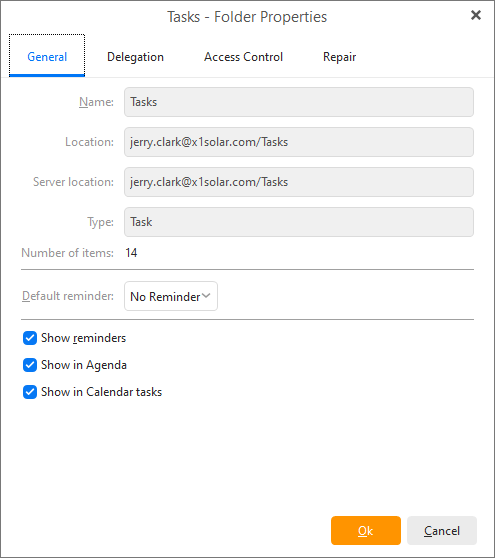
Here you have 3 options that can be used: Show reminders, Show in Agenda, Show in Calendar tasks
If you check Show reminders, the reminders of tasks in a particular task folder will be shown (active), if you uncheck this option, reminders set up in this task folder will not be active.
If you check Show in Agenda, the tasks from a particular task folder will be shown in the Agenda section on the right.
If you check Show in Calendar tasks, the tasks from a particular task folder will be show in your Calendar view , just as you can see in the picture: